Assets
Assets are designed to track data flows and visualize data sets, automatically detecting when you reference them in your code. Assets can be detected both during static code analysis and at runtime. Assets are referenced with URIs and include:
- S3 objects : s3://storage/path/to/file.csv
- Resources : res://path/to/resource
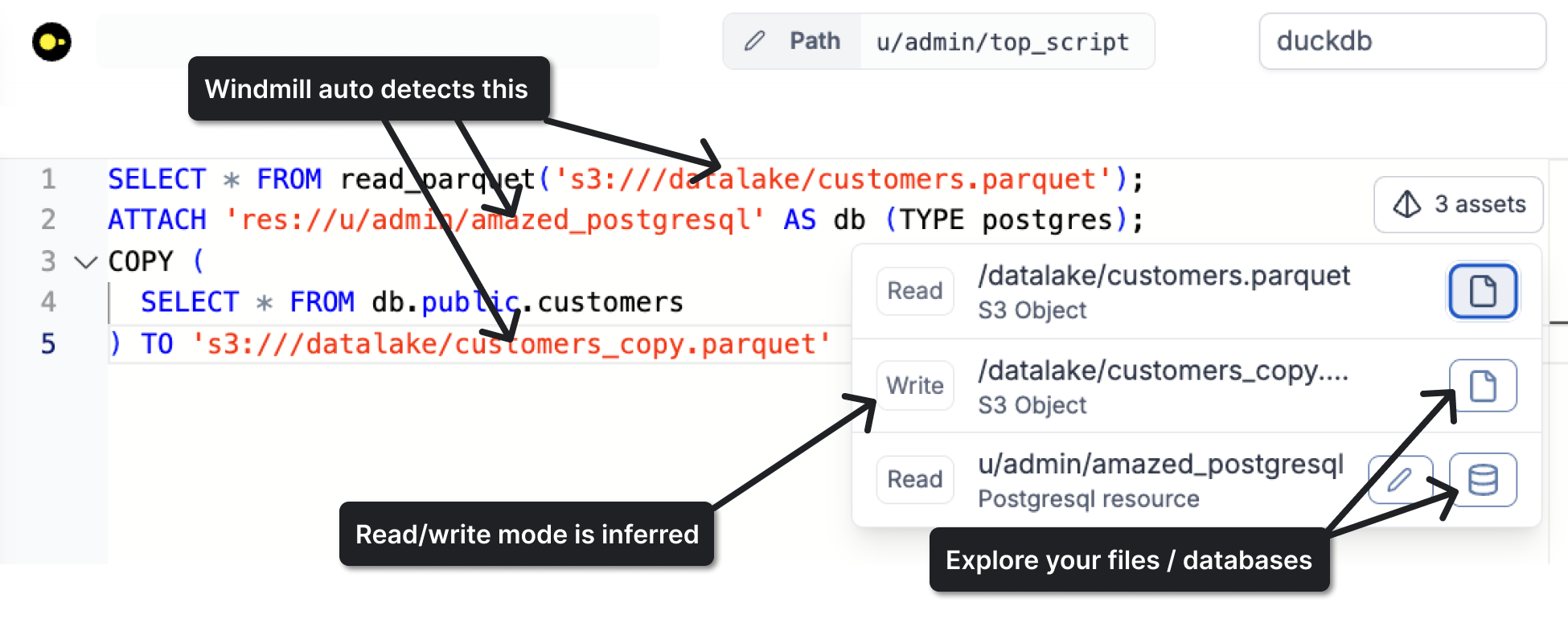
As of writing this, assets are supported for the following languages:
When the asset is a database resource or an S3 file, an explore button will appear next to the asset with access to the database manager.
Asset detection
Assets are detected in two ways:
Static code analysis
Assets are detected during deployment when they are referenced directly in your code. The Read / Write mode is inferred from code context. For example, a COPY (...) TO file statement is always Write. Sometimes the Read / Write mode cannot be inferred, in which case you are able to manually select it.
Runtime detection
Assets can also be detected at runtime in two ways:
- When using an SDK function - For example, when using
wmill.datatable()or when reading/writing S3 objects. In this case, Windmill can track which jobs accessed which asset and whether it was a Read or Write operation. - When passing a resource as a job argument - Resources passed as job arguments are automatically detected as assets at runtime.
You can use the Add Resource / S3 Object buttons in the editor bar for convenience :
The python and Typescript/Javascript clients now support the new URI syntax :
wmill.get_resource('res://path/to/resource')
wmill.load_s3_file('s3://storage/path/to/file.csv')

# Not using the URI syntax still works for back-compatibility,
# and is detected as an asset
wmill.load_s3_file('storage/path/to/file.csv')
Asset nodes in flows
In flows, your assets will show up as asset nodes, making data flow easy to visualize :
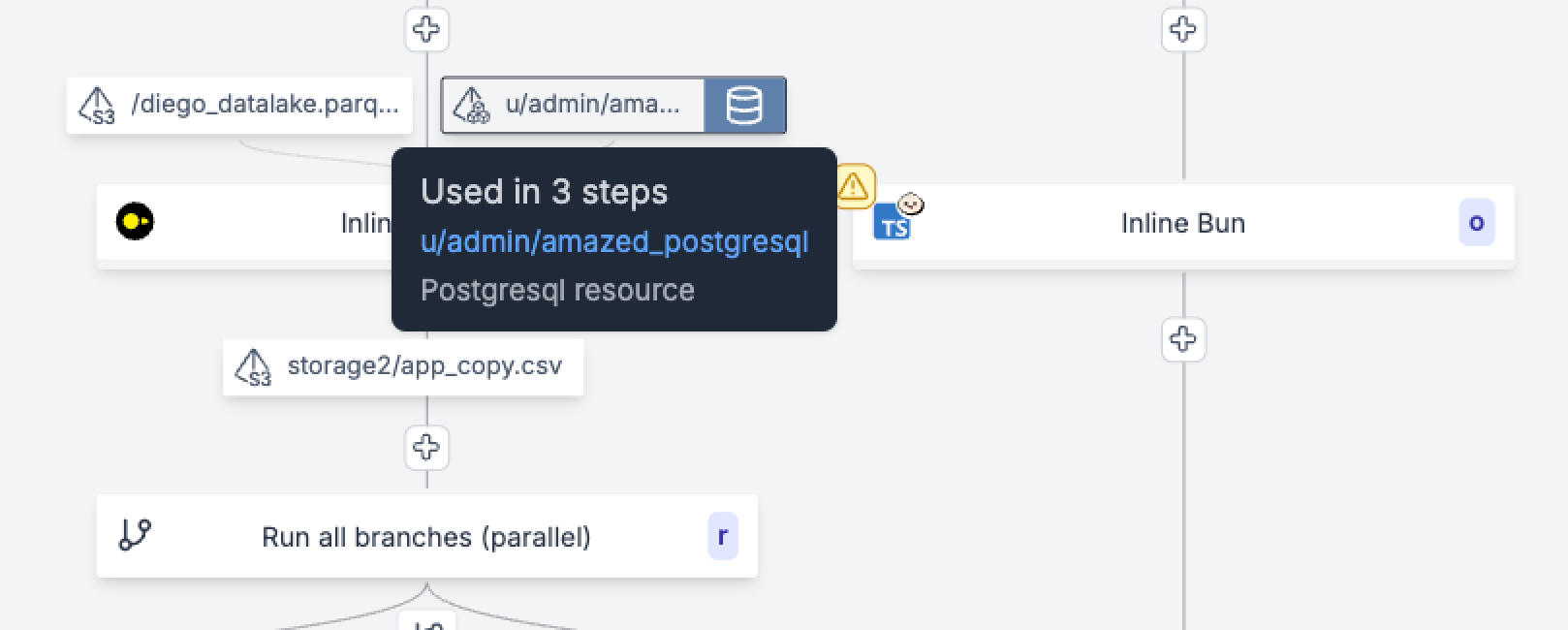
The Read/Write mode is used to show the asset as an input or output node.
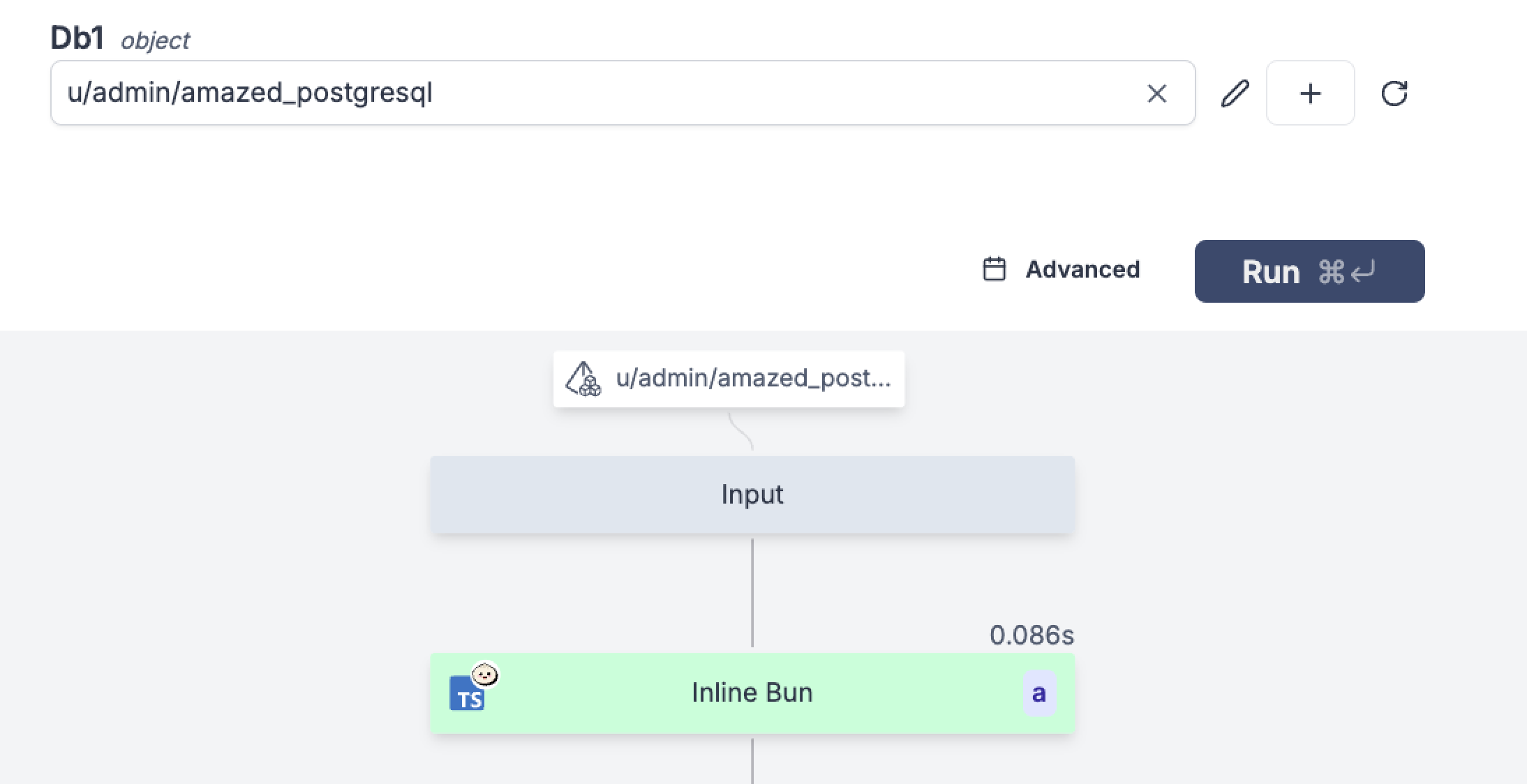
When running a flow and passing an asset as an input, it will appear as an input of the flow in the preview graph :
Column-level tracking
For DuckDB and data table assets, Windmill tracks which columns are accessed by each script or flow step. The SQL parser detects column references in SELECT, INSERT, and UPDATE statements and records whether each column is read or written.
Column information is displayed:
- In the flow editor as column badges on asset nodes, showing which columns each step reads or writes.
- In the asset usage drawer, alongside the script/flow path and read/write mode.
Tracking where your assets are used
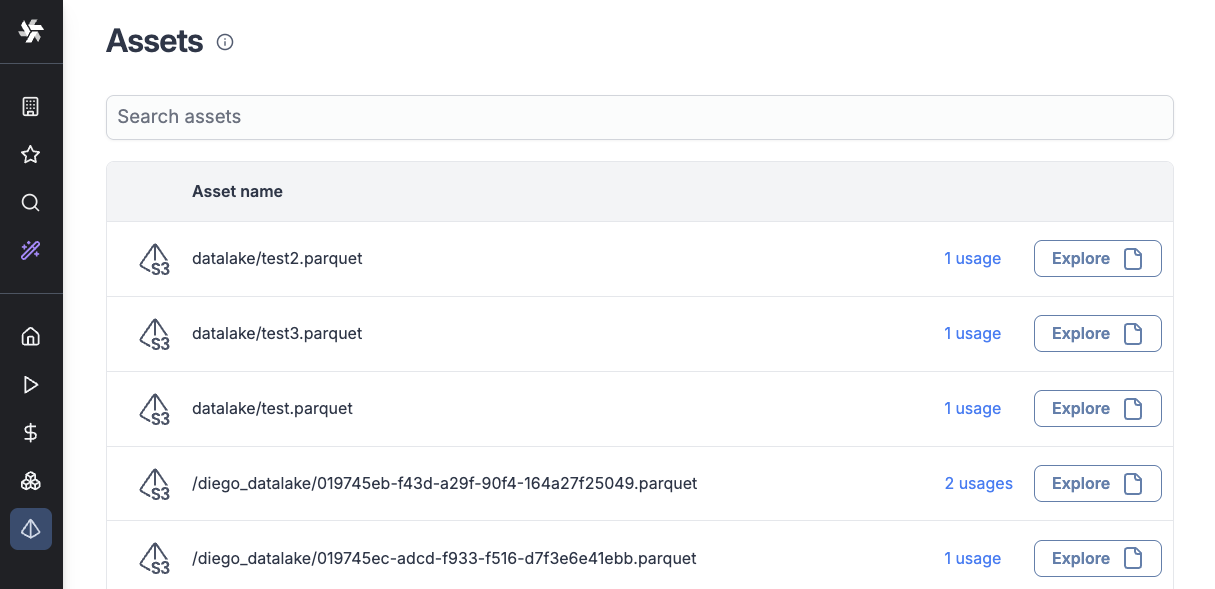
Assets are stored in the database upon script / flow deployment. You can see a list of all assets used in your workspace by going to the Assets tab in the sidebar.
Clicking on the usages link will show the list of scripts and flows that use the asset.
Assets exploration
The Assets page provides an overview of all workspace data sources organized by category:
- Data tables: Lists all data tables in the workspace with an explore button to open them in the database manager.
- Ducklakes: Lists all Ducklake tables with explore access.
- Workspace object storages: Lists primary and secondary S3 storages configured in the workspace.
Below the exploration cards, a table of "Latest assets used" shows recent asset activity with filters for asset path, usage path, and asset kind.
Favorite assets
You can star/favorite individual tables within data tables and Ducklakes directly from the database manager. Starred tables appear in the favorites menu for quick access. Clicking a favorite opens the database manager directly to that table.